

整 Your library
Building your library
Add directories, let them index, and organise them into organizations and packs.
Directories, organizations and packs
Media Browser Pro gives a library three levels of structure:
| Level | What it is | Example |
|---|---|---|
| Directory | A folder you added | W:\Asset Library\Stock Images\Photobash |
| Organization | Who made it — a vendor or source. Several directories can share one. | Photobash, Big Films, Digital Juice |
| Pack | A collection inside it, taken from its sub-folders | Abandoned Asylum, Florence City |
Every card shows its pack under the file name, and the Details panel shows all three.

Adding directories
Click + in the toolbar, or the + next to DIRECTORIES in the sidebar.

- Browse Folders… opens the full Windows folder dialog — select several folders at once.
- Or paste a directory path and press Add.
- Existing directories lists what is already in the library, each with its organization and path. × removes one from the library (your files on disk are not touched).
- Press Add n Directories to start.
Indexing
Files appear as soon as they are found. ffprobe reads each file’s metadata and ffmpeg generates thumbnails, audio waveforms and scrub previews in the background. Several files are processed at once — by default, one fewer than your CPU cores, so the host stays responsive; video previews are capped at three at a time. You can change this in Preferences → Behaviour.
The directory menu
Right-click any directory in the sidebar:
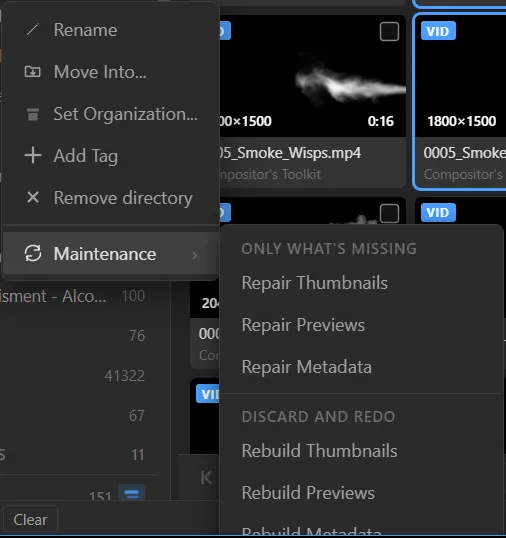
- Rename — the display name in the library.
- Move Into… — group directories under a parent directory (see below).
- Set Organization… — choose which organization the directory belongs to.
- Add Tag — tag every file in the directory.
- Remove directory — remove it from the library.
- Maintenance — repair or rebuild thumbnails, previews and metadata for just this directory. Only what’s missing: Repair Thumbnails, Repair Previews, Repair Metadata. Discard and redo: Rebuild Thumbnails, Rebuild Previews, Rebuild Metadata.
Set Organization
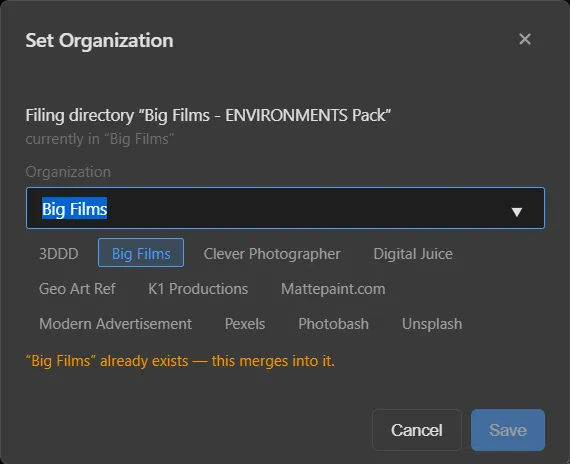
Type a name or click one of the existing organizations. If the name already exists, the directory joins it.
Move Into
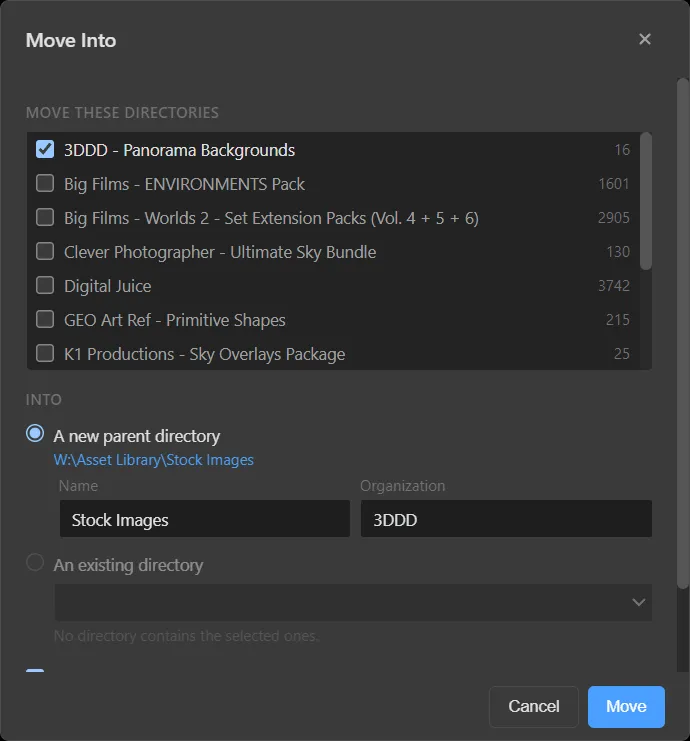
Tick the directories to move, then choose a new parent directory (give it a name and organization) or an existing directory that contains them.
Tip
A good library is one you can navigate without searching. Spend five minutes on organizations once, and browsing by vendor and pack becomes two clicks. There’s a kata for it: File like a librarian.
Something unclear or missing? Tell the sensei and the page will be fixed.