

入 Getting started
Installation
Requirements, installing the extension, ffmpeg, where your library is stored, updating and uninstalling.
Requirements
- Windows 10 or 11.
- After Effects, Premiere Pro, Photoshop and/or Illustrator — current Creative Cloud releases.
- ffmpeg and ffprobe for thumbnails, waveforms and previews. The panel can fetch them for you (see below).
- Disk space for the cache. As a guide, a 50,299-file library generates about 54,000 cache files, roughly 1.8 GB.
Install the extension
- 1
Unzip the download
You get a folder called MediaBrowserPro.
- 2
Copy it into the extensions folder
Paste it into %APPDATA%\Adobe\CEP\extensions\ — create the extensions folder if it does not exist. Paste %APPDATA% into the Explorer address bar to get there quickly.
- 3
Restart the host application
Close and reopen After Effects (or Premiere Pro, Photoshop, Illustrator).
- 4
Open the panel
Window → Extensions → Media Browser Pro. Dock it like any other panel.
The same installed copy appears in every supported host — install once, use it everywhere.
Panel not listed under Window → Extensions?
Adobe hosts only load unsigned extensions when debug mode is enabled. Open Command Prompt and run both lines (one for each recent CEP version), then restart the host:
reg add "HKCU\Software\Adobe\CSXS.11" /v PlayerDebugMode /t REG_SZ /d 1 /f
reg add "HKCU\Software\Adobe\CSXS.12" /v PlayerDebugMode /t REG_SZ /d 1 /f
ffmpeg and ffprobe
Media Browser Pro uses ffmpeg and ffprobe to read metadata and to generate thumbnails, waveforms and previews. Everything else — importing, searching, tagging, dragging into the host — works without them.
Open Maintenance → Media Tools… to see what the panel found:
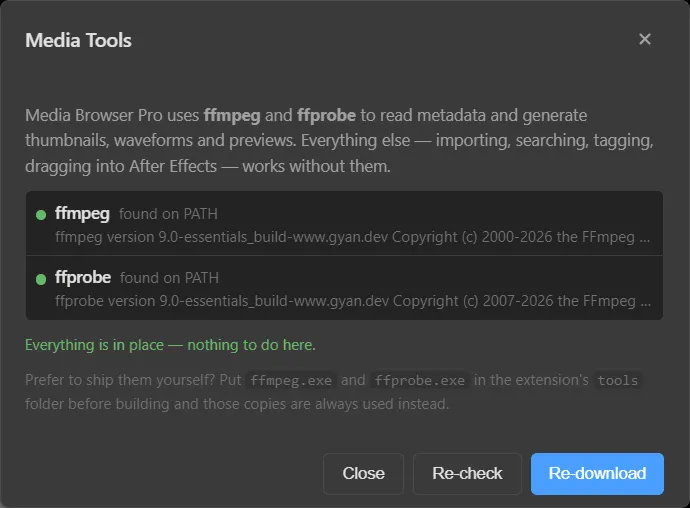
- Re-check looks again after you install them yourself.
- Re-download fetches them for you.
- To ship your own copies, put
ffmpeg.exeandffprobe.exein the extension’stoolsfolder — those copies are always used instead.
Formats neither tool can decode are still indexed and importable; they just show an extension badge instead of a thumbnail.
Where your library lives
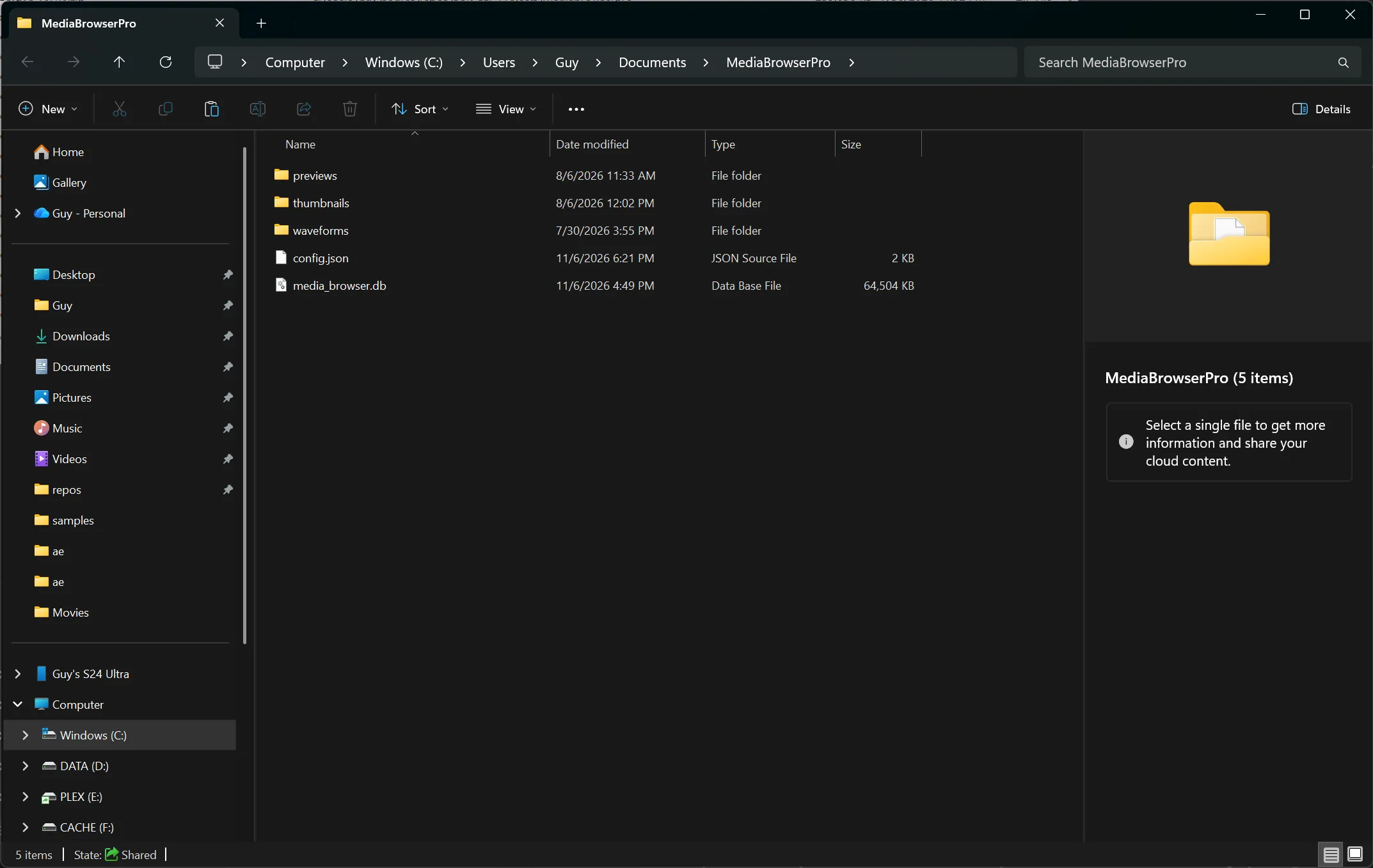
The index and cache are stored in your Documents folder, separate from the extension:
| Item | What it holds |
|---|---|
media_browser.db | The library database: directories, files, metadata, tags |
config.json | Your preferences and panel state |
thumbnails\ | Card thumbnails |
previews\ | Scrub previews for video |
waveforms\ | Audio waveforms |
Updating
Replace the MediaBrowserPro folder in the extensions folder with the new version and restart the host. Your library in Documents\MediaBrowserPro is untouched.
Uninstalling
Delete the MediaBrowserPro folder from %APPDATA%\Adobe\CEP\extensions\. To remove the library and cache as well, delete Documents\MediaBrowserPro. Your media files are never stored there and are not affected.
Something unclear or missing? Tell the sensei and the page will be fixed.