

取 Importing
Importing
Import modes, the import menu, drag and drop, and what happens in each host application.
Three ways to import
- The Import button in the toolbar (or the status bar, or the Details panel). Hold modifier keys to change what it does.
- The import menu — lists every mode by name, plus tagging, Copy Path and Remove from Library.
- Drag and drop — drag cards out of the panel. Modifier keys apply here too.
The import menu
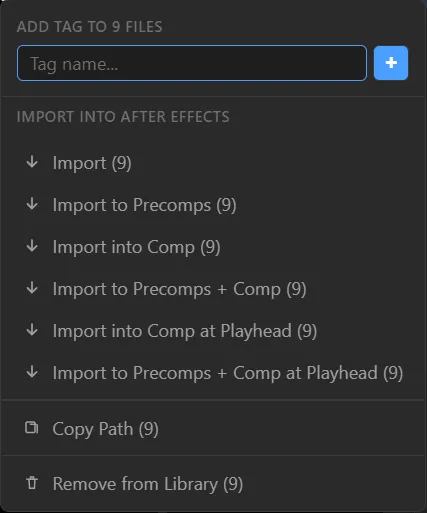
| Mode | What happens (After Effects) |
|---|---|
| Import | Files are added to the project. |
| Import to Precomps | Each file is wrapped in its own precomp. |
| Import into Comp | Files are placed into the active comp. |
| Import to Precomps + Comp | Each file gets its own precomp, and every precomp is placed into the active comp. |
| Import into Comp at Playhead | Placed into the active comp, starting at the playhead. |
| Import to Precomps + Comp at Playhead | Precomps, placed into the active comp at the playhead. |
The count in brackets is how many files the action applies to. The menu also has:
- Add tag to n files — a tag field at the top of the menu.
- Copy Path — copies the full path(s) to the clipboard.
- Remove from Library — removes the entries from the library. Files on disk are not deleted.
Drag and drop
Drag a card — or a selection — out of the panel. Because of a limitation in how Adobe panels work, a drag can’t be delivered to the host directly, so Media Browser Pro imports when the drag is released outside the panel. Releasing anywhere outside the panel triggers it, not only over the host. You can switch this off in Preferences → Behaviour.
In each host
After Effects (AEFT)
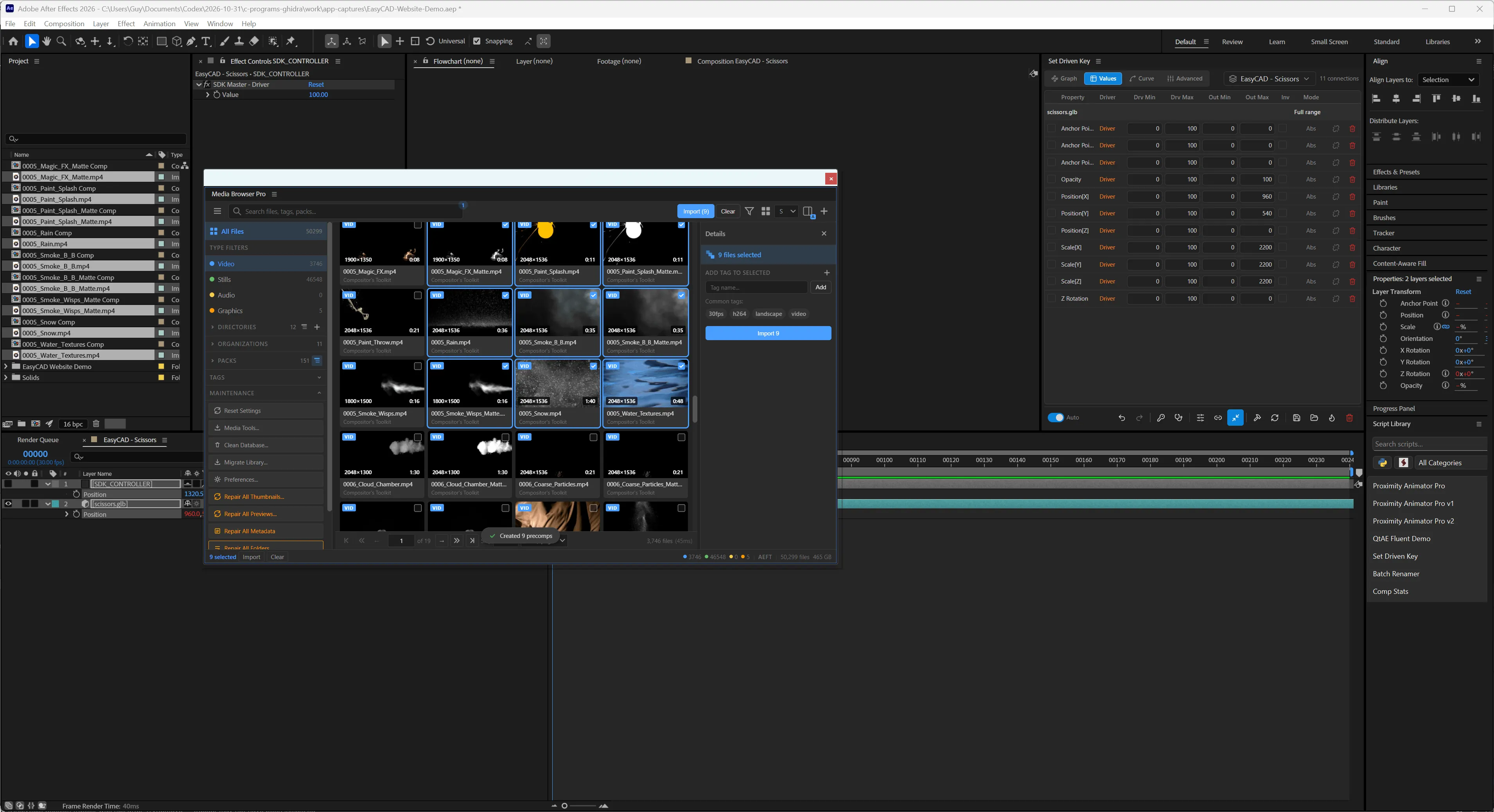
All six modes are available, and a toast confirms what was created.
Premiere Pro (PPRO)
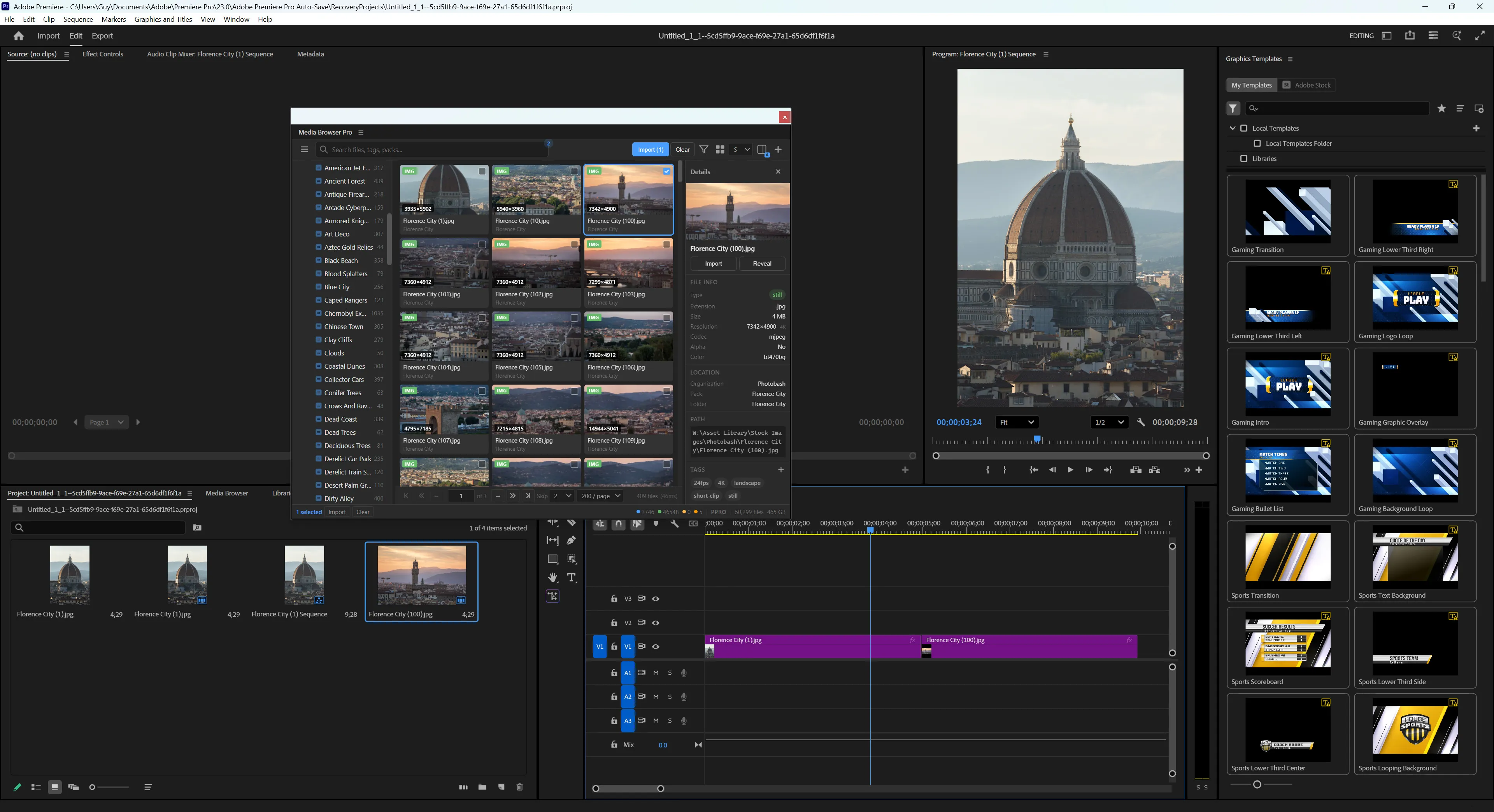
Containers are sequences and the target is the active sequence; at playhead places clips at the current time.
Photoshop (PHXS)
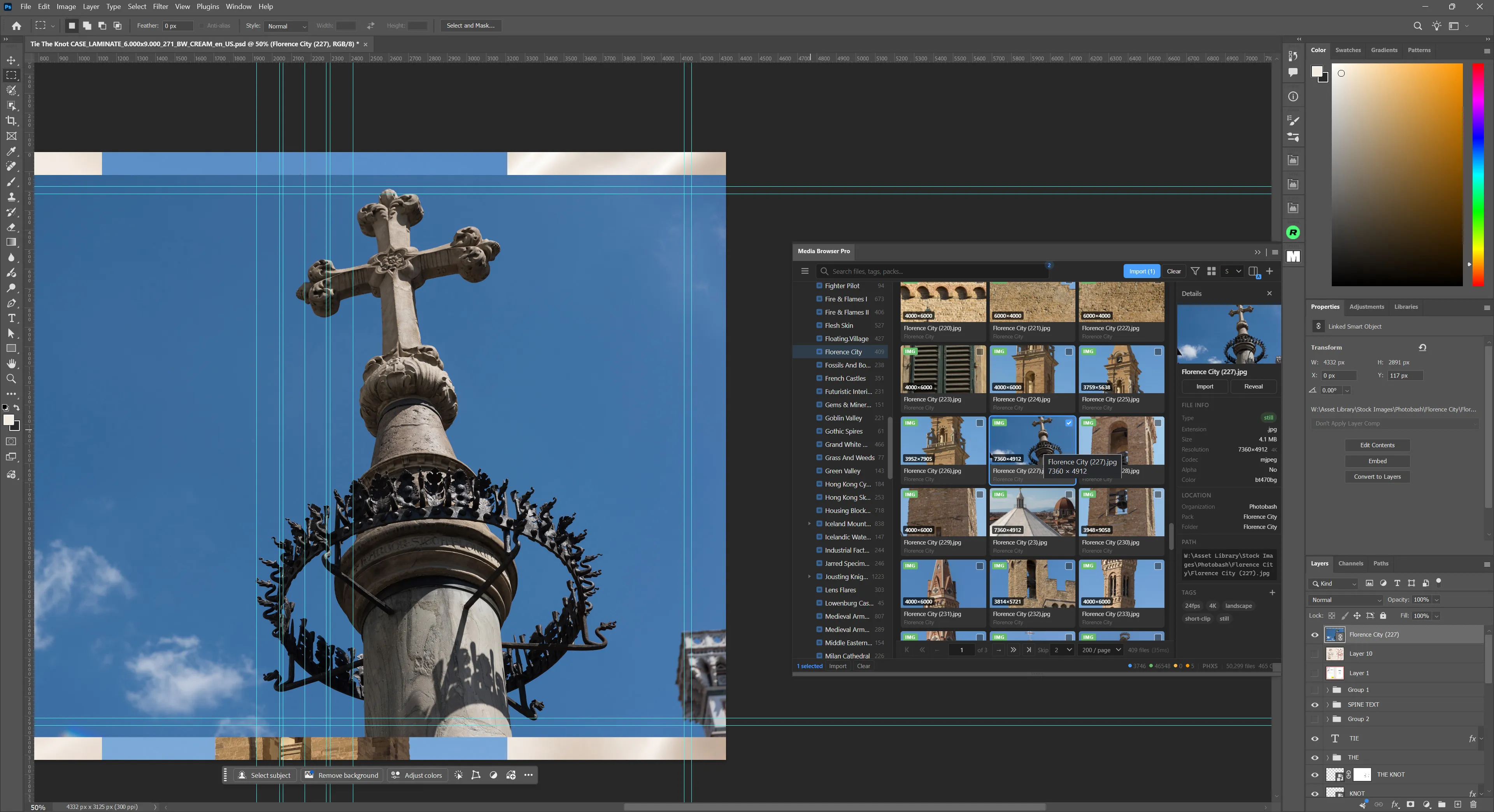
Files are placed into the active document as linked smart objects.
Illustrator (ILST)
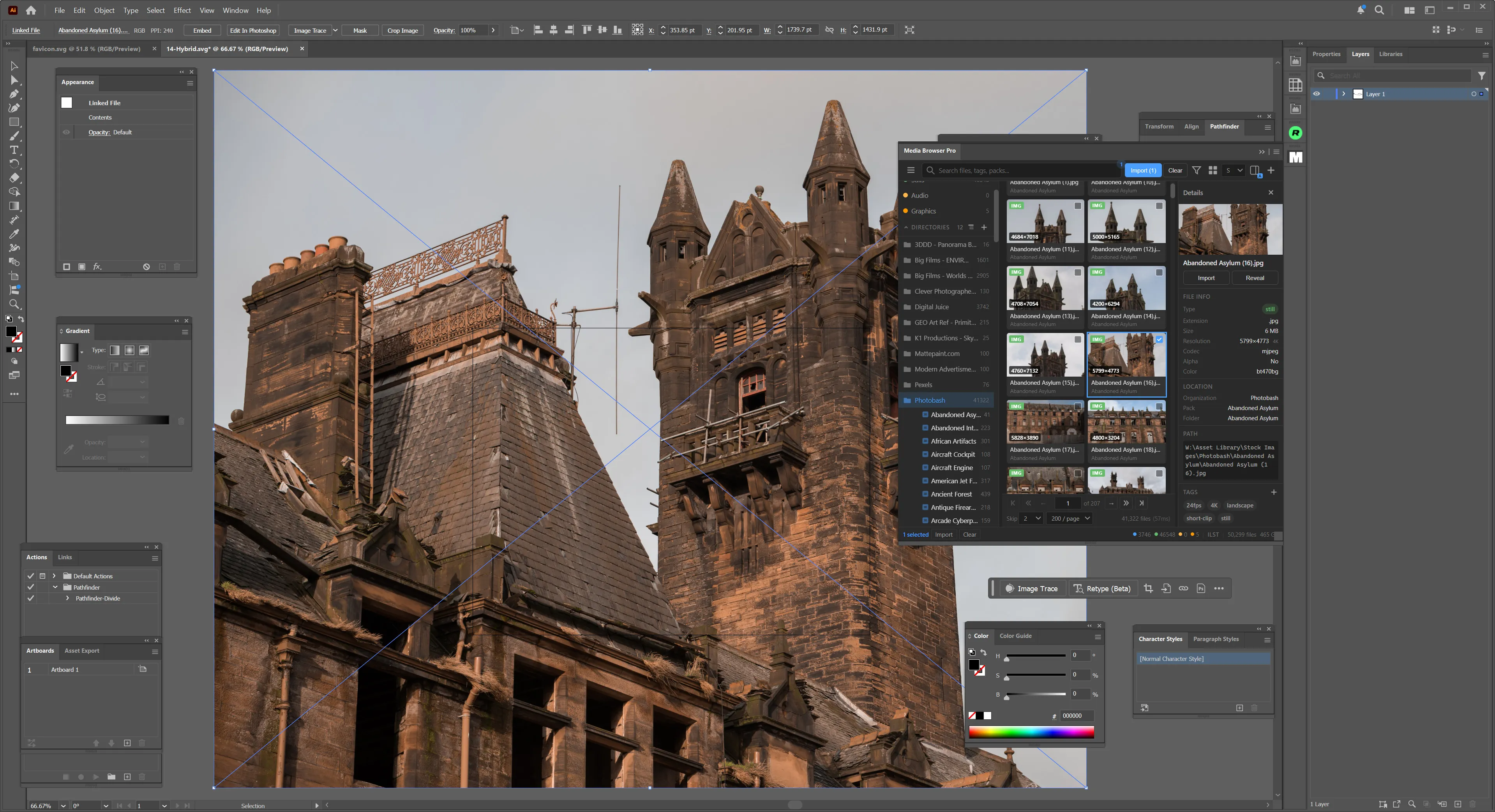
Files are placed into the active document as linked files.
Layered PSD and AI files
When you import a layered Photoshop or Illustrator file, the host asks how to bring it in. If you always answer the same way, turn on Remember PSD / AI import choice in Preferences → Behaviour to skip the prompt and reuse your last choice.
Something unclear or missing? Tell the sensei and the page will be fixed.