

見 Finding media
Browsing & previews
Grid and list views, card sizes, scrub previews, selecting files and paging through big libraries.
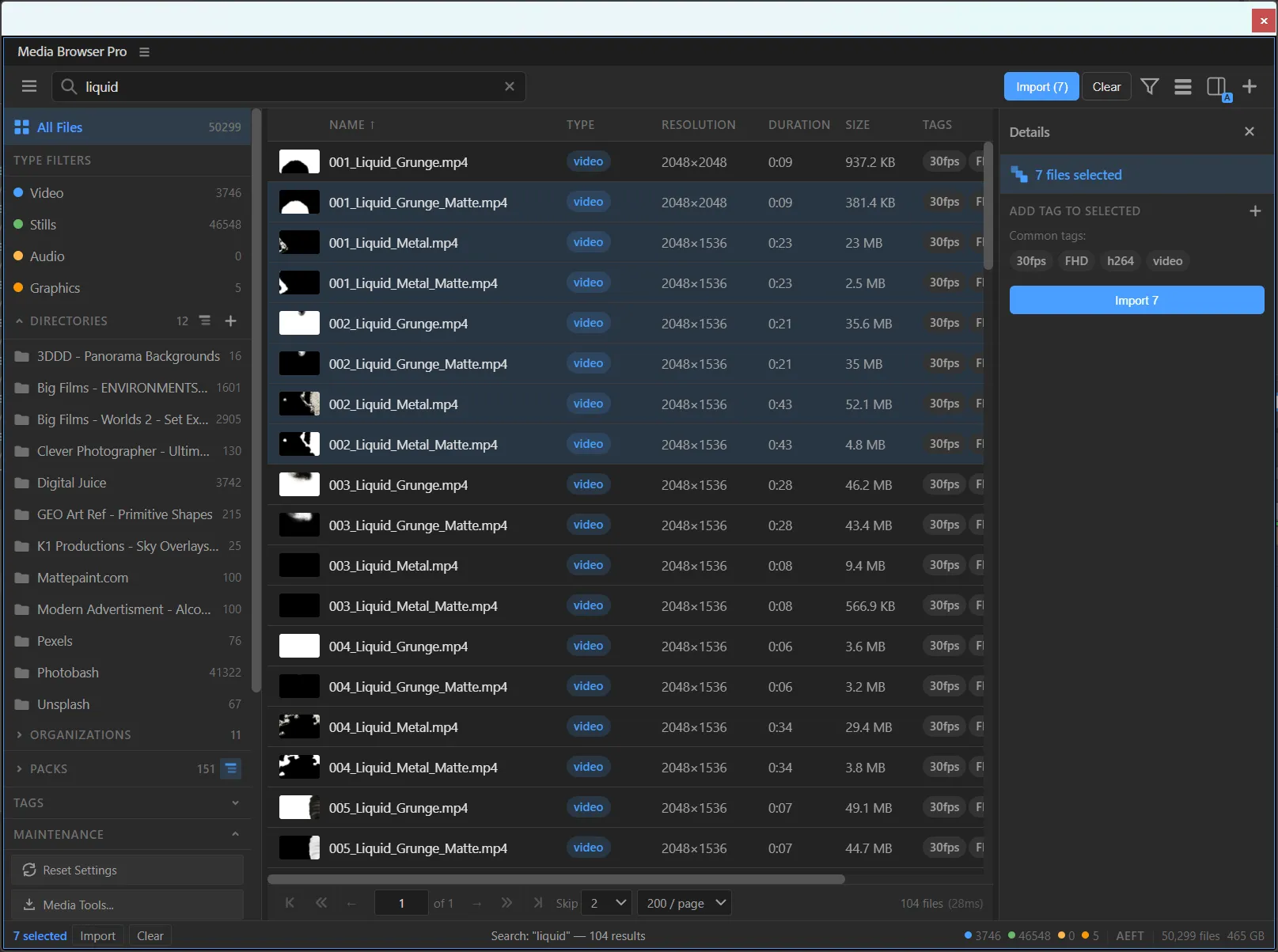
Grid and list
The toolbar switches between the grid of cards and the list view.
Card sizes
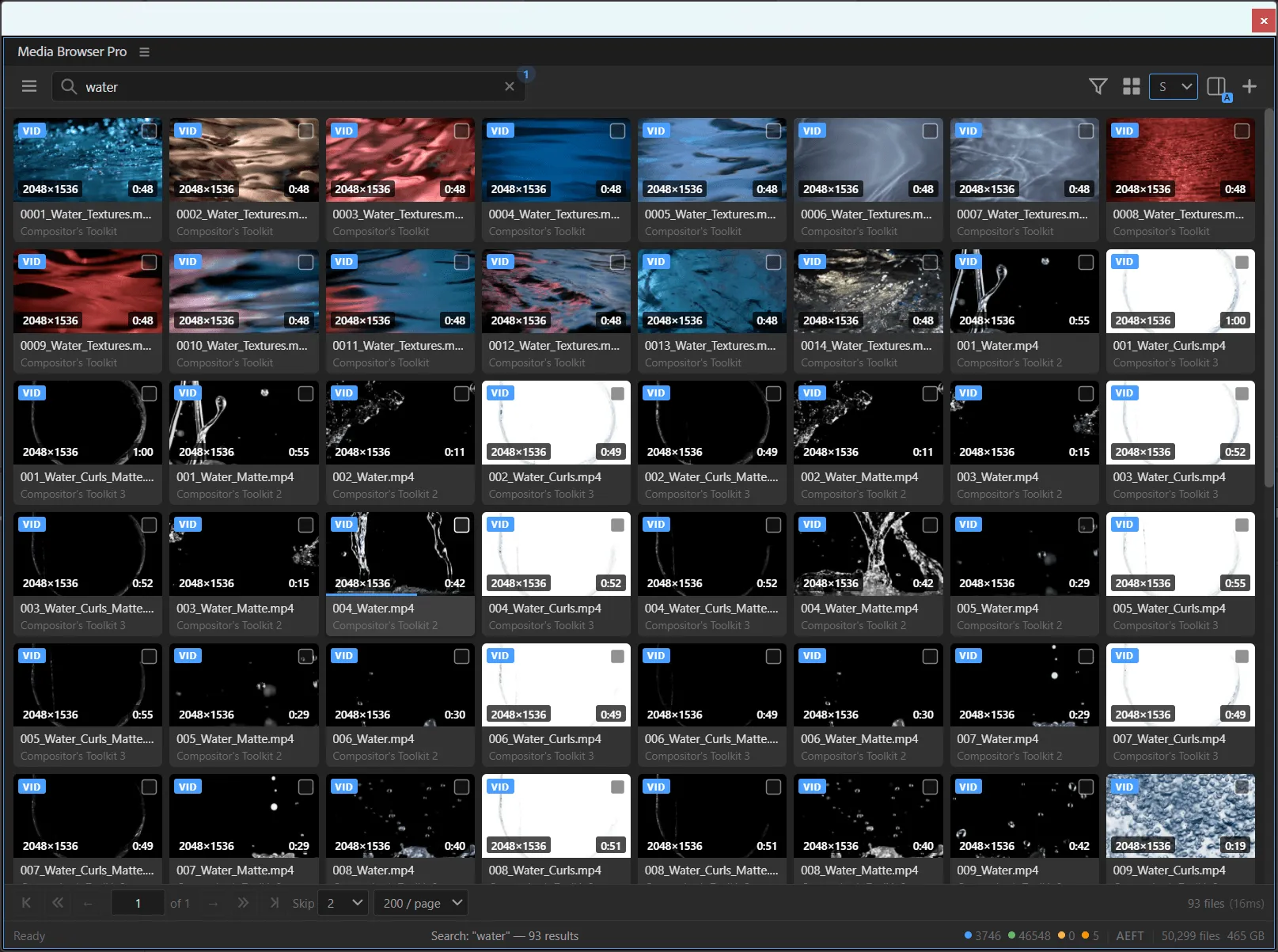
The size menu next to the view toggle sets how big the cards are. Smaller cards fit more files per row for scanning; larger cards make it easier to judge a clip.

Scrub previews
Move the pointer across a video card to scrub through it. The left edge is the start and the right edge is the end; a thin bar along the bottom of the thumbnail shows the position. Nothing plays on its own, so a page full of clips stays calm.
The behaviour is set in Preferences → Behaviour → Grid previews. Scrub previews are generated by ffmpeg during indexing; if a card shows only a still, run Repair All Previews….
Selecting
- Tick a card’s checkbox to add it to the selection.
- The toolbar’s Import (n) and the status bar’s n selected show how many files are selected.
- Clear (toolbar or status bar) deselects everything.
- With one file selected the Details panel shows that file; with several it switches to batch mode.
Paging
Big libraries are split into pages so the panel stays fast. Use the paging bar under the grid:
- |‹ ‹‹ ‹ [page] › ›› ›| — first, jump back, previous, the current page, next, jump forward, last.
- Skip — how many pages the jump buttons move (default 2).
- / page — how many cards per page (default 200).
Both defaults can be changed in Preferences → Behaviour.
Something unclear or missing? Tell the sensei and the page will be fixed.