

技 The panel
Interface tour
The toolbar, sidebar, grid, Details panel and status bar — what every part of the panel does.

Interactive version
The Media Browser Pro page has a clickable map of this screenshot — hover each marker to see what it does.
Toolbar

From left to right:
- Menu (☰) — collapses or expands the sidebar.
- Search — searches file names, tags and packs as you type. Click into it to see your recent searches. × clears it.
- Import (n) — imports the current selection; n is how many files are selected. Modifier keys change what it does — see Modifier keys.
- Clear — deselects everything.
- Filter — opens the filter bar (type, format, alpha, resolution, duration).
- Grid / list — switches the view.
- Size (S / M / L) — changes the card size.
- Details — shows or hides the Details panel.
- + — add media directories.
Sidebar
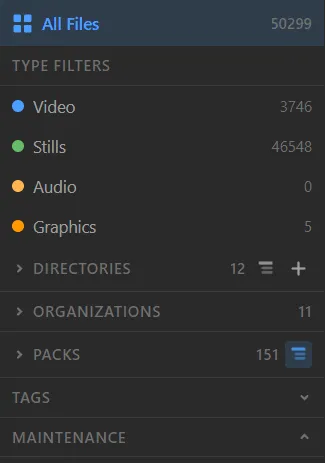
- All Files — everything in the library, with the total count.
- Type filters — Video, Stills, Audio and Graphics, each with a live count.
- Directories — the folders you added. The list icon toggles the tree; + adds more.
- Organizations — directories grouped by vendor or source.
- Packs — individual products or collections inside them.
- Tags — every tag in the library. Click one to filter.
- Maintenance — reset, media tools, clean database, migrate, preferences, and the repair/rebuild jobs. See Maintenance.
The grid
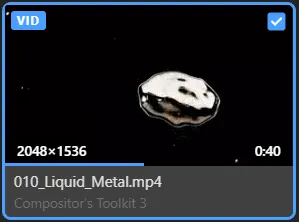
Each card shows:
- a type badge —
VID,IMGand so on; - a checkbox for selection;
- resolution and, for video and audio, duration;
- the file name and, underneath, the pack it belongs to.
Move the pointer across a video card to scrub it. See Browsing.
Paging

First, jump back, previous, the page box, next, jump forward and last. Skip sets how many pages the jump buttons move; / page sets how many cards per page. The right side shows the file count and how long the query took.
Status bar

- Left — how many files are selected, with quick Import and Clear.
- Middle — what you are looking at, for example Search: “liquid” — 104 results.
- Right — live counts per type (video, stills, audio, graphics), the host you are in (
AEFT,PPRO,PHXSorILST), total files and total size of the library.
Something unclear or missing? Tell the sensei and the page will be fixed.