
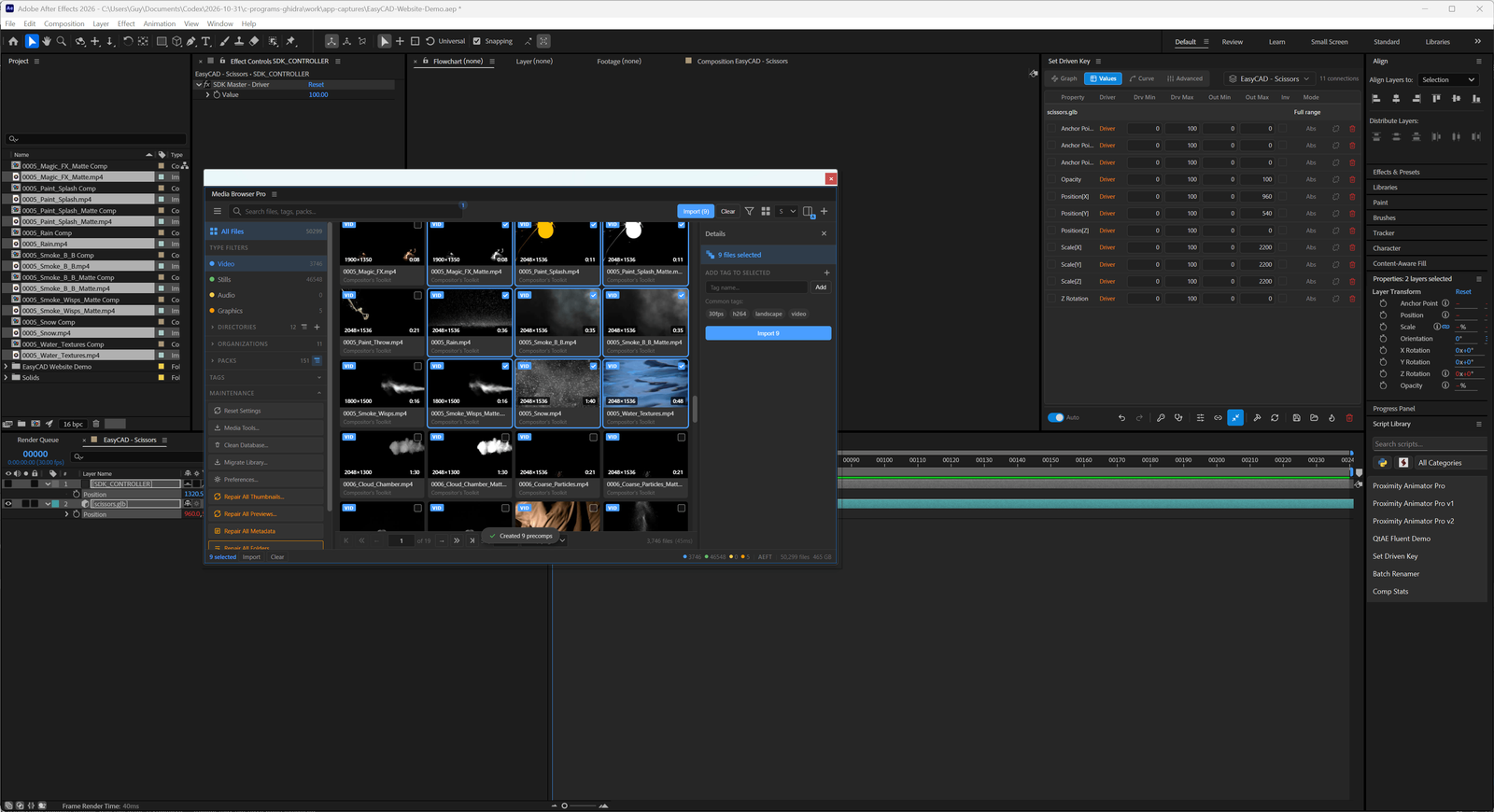

The white-belt import drops files into your project. In this lesson you’ll make Media Browser Pro build the precomps, place them in the comp and line them up at the playhead — in one click.
The setup
- Open a comp in After Effects and park the playhead where you want the new layers to start.
- In Media Browser Pro, search for a set of related clips — the demo uses
0005_elements from Compositor’s Toolkit. - Tick the clips you want. The toolbar shows Import (9).
Six modes, one menu
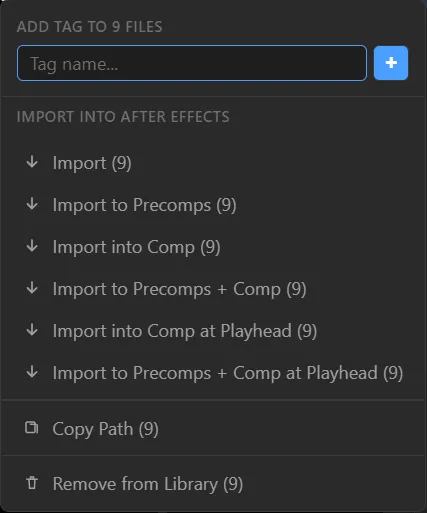
Read the menu from top to bottom: each line adds one behaviour to the one above it. You can always pick a mode here by name. But the fast way is the keys.
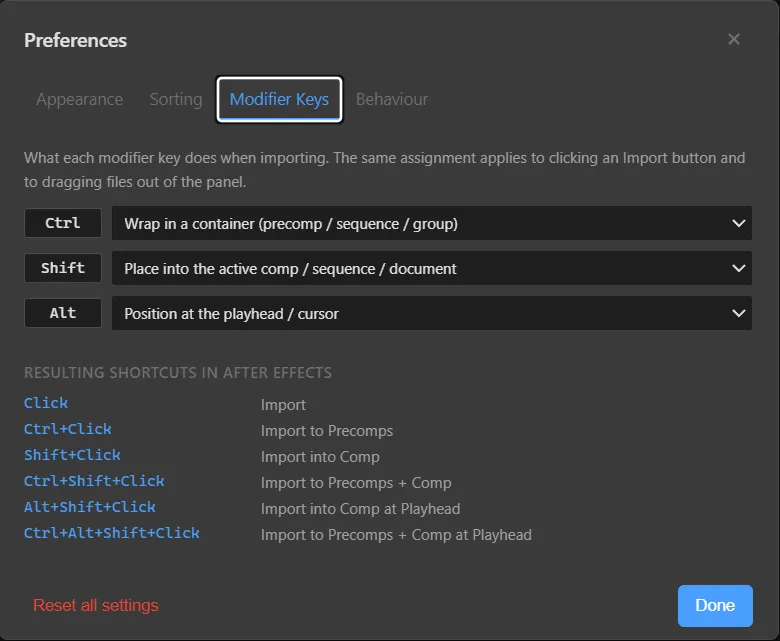
The three keys
| Key | Adds |
|---|---|
| Ctrl | each file in its own precomp |
| Shift | placed into the active comp |
| Alt | starting at the playhead |
So:
- Ctrl + Click → Import to Precomps
- Shift + Click → Import into Comp
- Ctrl + Shift + Click → Import to Precomps + Comp
- Alt + Shift + Click → Import into Comp at Playhead
- Ctrl + Alt + Shift + Click → Import to Precomps + Comp at Playhead
The form
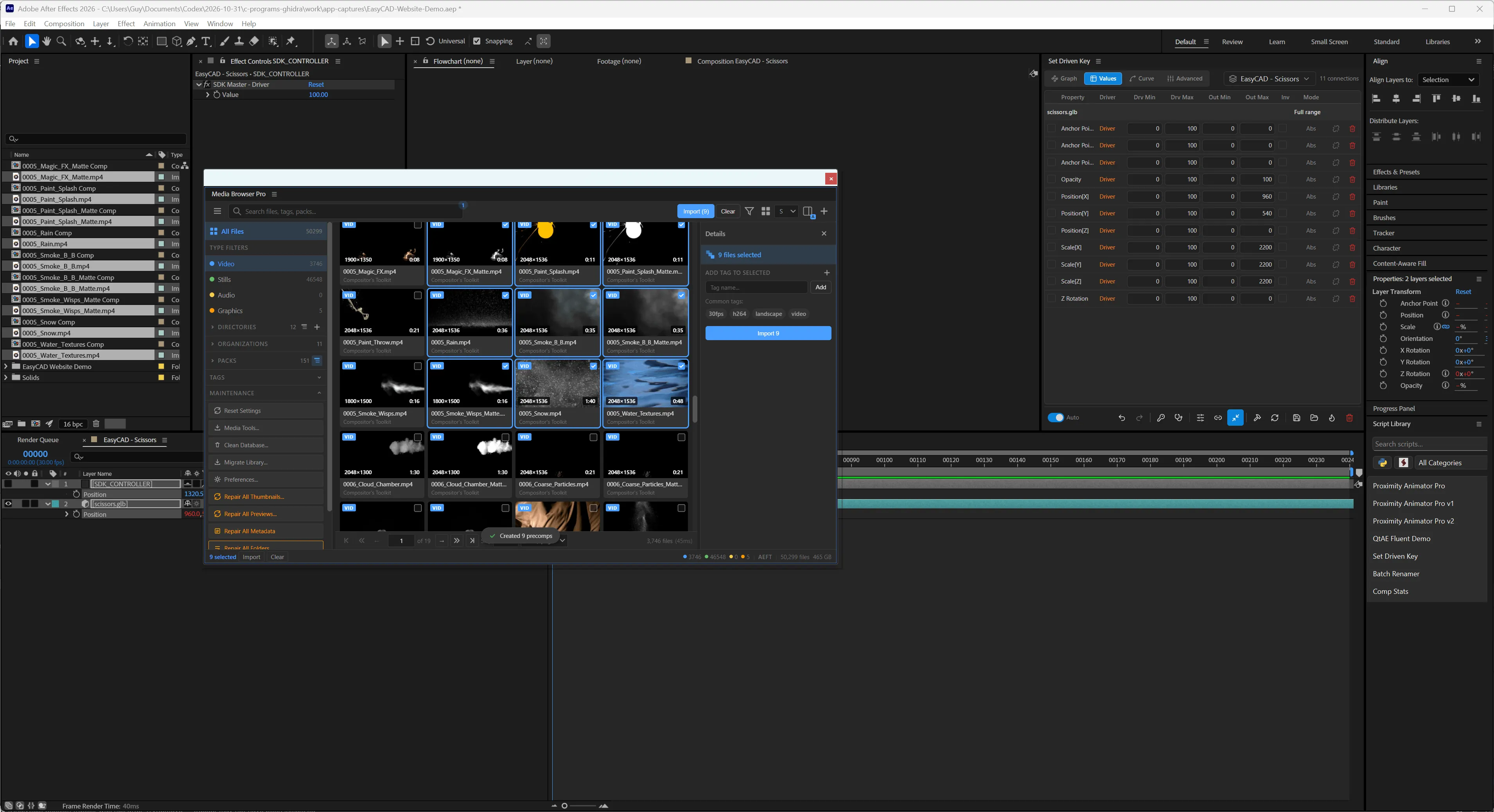
Hold Ctrl + Alt + Shift and click Import (9).
Drag works too
The same keys apply when you drag cards out of the panel. Hold the modifiers, drag the selection out, and release outside the panel.
Make it yours
If your hands want different keys, open Preferences → Modifier Keys and re-assign them. The Resulting shortcuts table updates live.
Drill it
Do the kata until you stop thinking about it: three clips, Shift + Click , undo, Ctrl + Shift + Click , undo, add Alt.