

By the end of this lesson your stock folders will be indexed and searchable, and you will have imported a clip into After Effects without opening Explorer.
You need: Media Browser Pro installed, After Effects open, and at least one folder of stock footage or images.
1. Open the panel
In After Effects choose Window → Extensions → Media Browser Pro. Dock it next to your Project panel, or let it float on a second monitor — it works either way.
2. Check your media tools
Open Maintenance → Media Tools… at the bottom of the sidebar. You want two green dots:
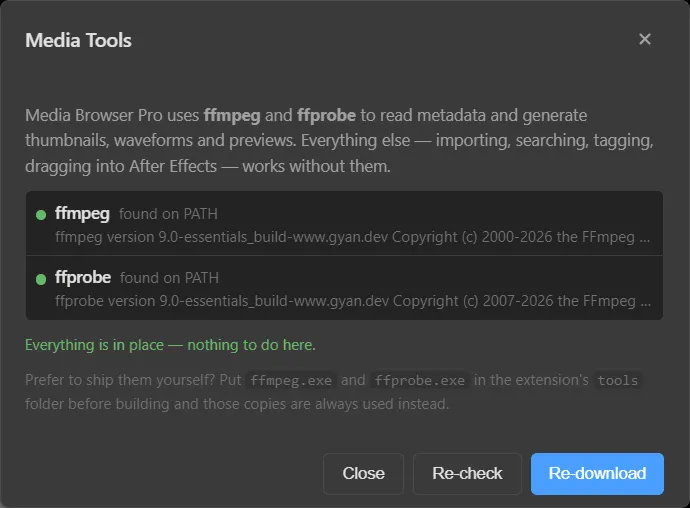
If either is missing, press Re-download. Without them the panel still indexes and imports, but cards won’t have thumbnails or scrub previews.
3. Add your folders
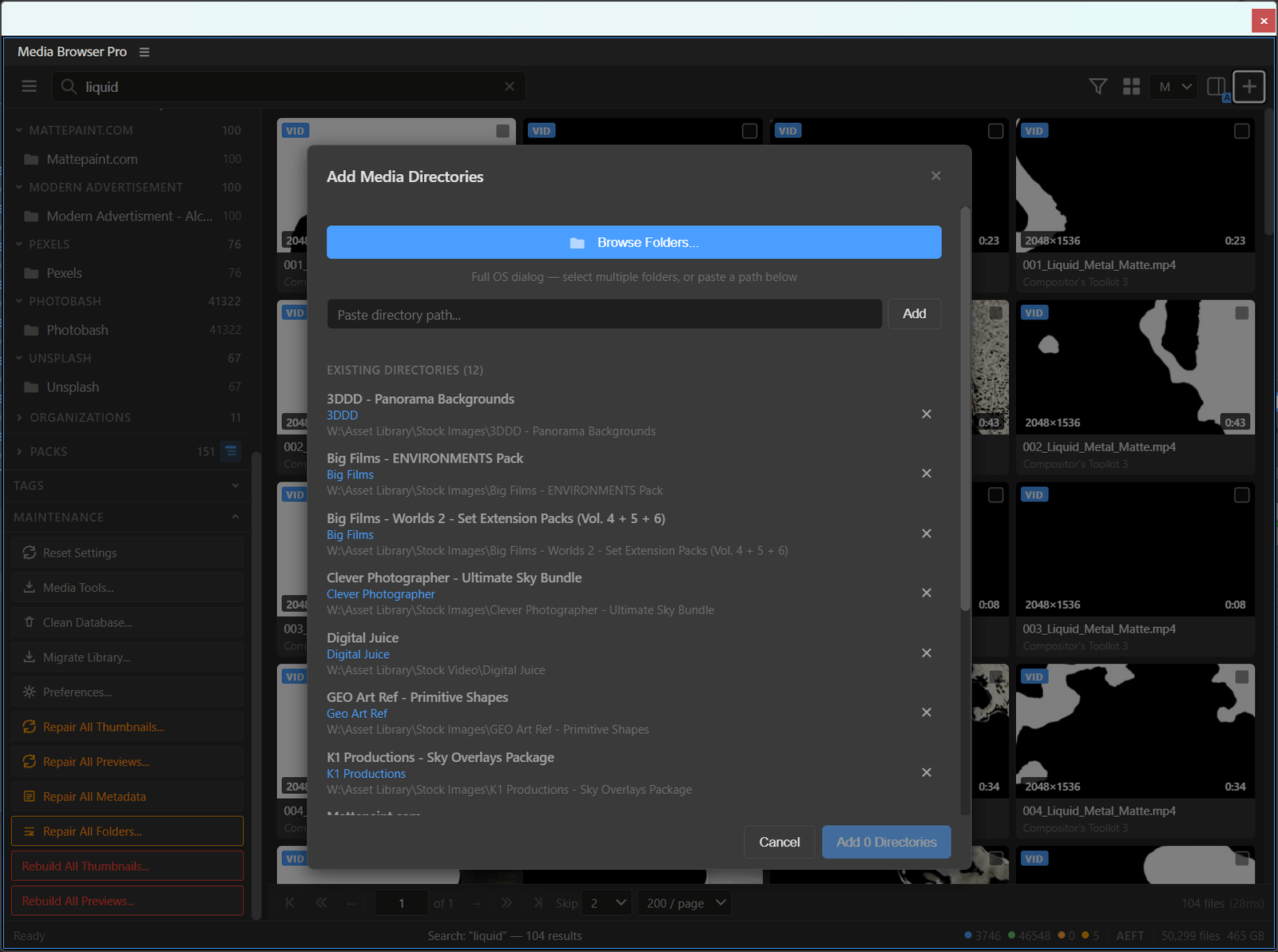
Click + at the right end of the toolbar.

Press Browse Folders… and select the folders that hold your stock — hold Ctrl to pick several. Then press Add n Directories.
Files appear straight away. Thumbnails and previews fill in over the next minutes while ffmpeg works in the background — you can keep working.
4. Search
Click the search bar and type something you know you own: smoke, sky, paper. The grid narrows as you type, and the status bar tells you how many results there are.
5. Scrub a clip
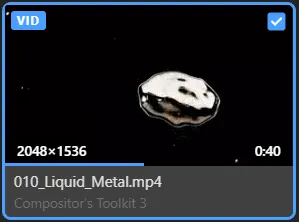
Move the pointer slowly across a video card. The left edge is the first frame, the right edge the last. Find one you like.
6. Import it
Tick the card’s checkbox and press Import (1) in the toolbar. The clip is now in your After Effects project.
Form complete
You have a searchable library and a one-click import. Next, learn to use the same library in every host.